Key takeaways
- All conversations are in My Business → Messages : Inbox, Sent, Spam and Deleted.
- Start a conversation 3 ways: Send Inquiry on a company profile, on a product page, or by replying to a quotation on your buy requirement.
- Each message keeps its context — the product or requirement it is about.
- Get alerts by email, WhatsApp or browser , with quiet hours you control.
- Keep conversations on Textilepages for a clear record — and never share passwords or change payment details by message alone.
How messaging works
Textilepages messaging is the built-in inbox that connects buyers and suppliers. You send an inquiry, the supplier replies or sends a quotation, and the full conversation — with files — stays in one thread you can return to at any time.
You send
Inquiry from a profile or product, or a buy requirement
Supplier is notified
By email, WhatsApp or browser alert
Supplier replies
Answer, quotation, catalogue or samples offer
You are notified
Reply appears in your inbox
You continue
Ask, negotiate, request samples
Messaging is free for buyers. You need a free Textilepages account so suppliers can reply to you and you can keep your conversations.
3 ways to start a conversation
| Where | Use it when | The supplier sees it as |
|---|---|---|
| Send Inquiry on a company profile | You want to ask about the company, its range or capacity | Business inquiry |
| Send Inquiry on a product page | You are interested in a specific product | Product inquiry — with the product attached |
| Reply to a quotation on your buy requirement | A supplier quoted your requirement | Buy lead reply — linked to your requirement |
If you know the product, use the product page — the supplier sees exactly what you mean. Not sure who to contact? Post a buy requirement and let suppliers come to you.
Send an inquiry, step by step
- Open a supplier profile or product Find them through company search, products or the supplier list.
- Click Send Inquiry The button is on the company profile header, in the Contact section and on every product.
- New or existing member? Already registered? Choose I have an account and log in. New? Fill in your name, email, company and country — your free account is created with your first message.
-
Choose what you’re interested in
Tick quick options such as
Price quote
,
Samples
or
Bulk order. - Write your message and attach files Add specifications, quantity and destination. Attach a tech pack or photo if you have one.
-
Send
You’ll see a confirmation, and the message appears in your
Sent
folder.
Write a message that gets answers
Suppliers receive many inquiries. Clear, specific messages get faster and more accurate replies.
- One topic per message — start a new inquiry for a very different product.
- Use numbers and units — 160 GSM, 9,000 pcs, 58/60 inch.
- Say what you want back — price, MOQ, lead time, samples.
- Introduce your company in one line — buyers who explain who they are get priority.
- Write simply — short sentences help suppliers who read English as a second language.
What the supplier sees
| Shown to the supplier | Details |
|---|---|
| Your name and company | As in your account |
| Country | With a country code badge |
| Inquiry type | Product inquiry, business inquiry or buy-lead reply |
| The product or requirement | Linked so they know exactly what you mean |
| Your message and attachments | Exactly as you sent them |
| Trust badge | Verified buyer when your account details are verified, otherwise New buyer |
Complete your My Account details (name, job title, company, verified email and mobile) — complete profiles get more replies.
Your inbox explained
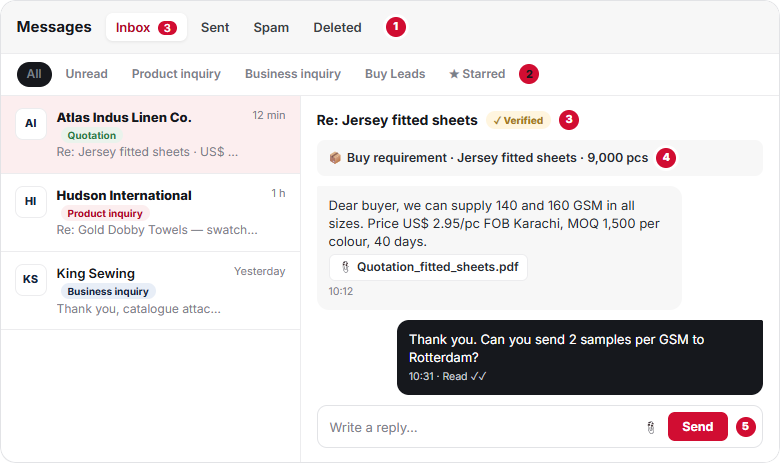
- Folders — Inbox, Sent, Spam and Deleted.
- Filters — see only unread, product inquiries, business inquiries, buy-lead replies or starred messages.
- Who you are talking to — company name and trust signals such as Verified.
- Section — the product or buy requirement the conversation is about.
- Reply box — write, attach files and sends.
| Folder | What’s in it |
|---|---|
| Inbox | Replies, quotations and messages from suppliers |
| Sent | Messages you sent, with delivery status |
| Spam | Messages that look like spam or phishing, moved here automatically. Restore any that are genuine |
| Deleted | Messages you deleted — kept for 30 days, then removed permanently |
In a conversation you can reply, attach files, star it to find it later, mark as unread, or report spam.
Message status
| Status | Meaning |
|---|---|
| Delivered | The message reached the supplier’s inbox |
| Read | The supplier opened it |
| Replied | The supplier answered — see your Inbox |
No reply after a few days? Send a short follow-up in the same thread, or contact other suppliers. Suppliers get a reminder when an inquiry is unanswered for 24 hours.
Attachments
- Attach tech packs, spec sheets, photos, size charts or your purchase order.
- Use common formats — PDF, JPG or PNG — and keep files small (under 10 MB).
- Name files clearly, e.g. FittedSheets_Spec_v2.pdf.
- Open attachments from suppliers you know; be careful with unexpected files or links.
Notifications
Choose how you hear about new messages in My Business → Settings → Notifications:
| Notification | Browser | ||
|---|---|---|---|
| Replies to my inquiries | ✓ | ✓ | ✓ |
| Quotes on my buy requirements | ✓ | ✓ | ✓ |
| Trade Alert digest | ✓ | Optional | — |
| New sign-in & password changes | Always on | Always on | — |
- Quiet hours — pause WhatsApp and browser alerts overnight (e.g. 10 pm–8 am, in your time zone).
- Extra email addresses — copy colleagues on notifications.
- Trade Alert frequency — instant, daily or weekly.
Phone, WhatsApp & email
Supplier phone and WhatsApp numbers show on company profiles after you log in. Calls and WhatsApp are great for quick questions — but keep prices, specifications and agreements in your Textilepages messages or email so you have a written record.
Spam & safety
Textilepages will never ask for your password by message, email or WhatsApp. Never pay to a new bank account because a message says so — confirm by phone first.
- Suspicious messages are moved to Spam automatically.
- Use Report spam on any message that asks for fees, passwords or unusual payments.
- Check the sender is the company you expect — compare with their profile.
- Read How to Trade Safely for payment and scam advice.
Good practice
Frequently asked questions
Is messaging on Textilepages free for buyers?
Yes. Buyers can send inquiries, receive replies and quotations, and use the inbox free of charge.
Where do I find supplier replies?
In My Business → Messages → Inbox. You also get a notification by email, WhatsApp or browser, depending on your settings.
What is the difference between a product inquiry and a business inquiry?
A product inquiry is sent from a product page and includes that product. A business inquiry is sent from a company profile and is about the company in general.
Can I send files with my message?
Yes. Attach tech packs, specifications, photos or a purchase order — PDF, JPG or PNG files work best.
How long are deleted messages kept?
Deleted messages are kept for 30 days, then removed permanently. You can restore them during that time.
Why did a message go to Spam?
Messages that look like spam or phishing are moved to Spam automatically. If a genuine message is there, restore it to your Inbox.
This guide explains how Textilepages works and common trade practice. It is general information, not legal, financial or customs advice.